---
description: '#Content editor'
---
# Preview Switch
You can switch between different preview modes in the "Work Preview Area" to preview your work from different perspectives.
* Global Scene View/Single Scene View
* Vertical/horizontal screen switching
* Multi language switching
* Play the scene/Return to initial state
* Quick layout
* Preview Size Switch
* Direct to Help Center
## 1.Scene View Switching
* Click on 'Global Settings' to display the' Global Scene View '
* Click on 'Scene' to display 'Single Scene View'
## 2.Vertical/Horizontal screen switching
The platform support 3 adaptation methods of Horizontal\&Vertical screen,Vertical screen and Horizontal screen mode. [work-creation-create-a-new-project](../../../work-creation-create-a-new-project "mention")
To deliver through Mintegral, you must choose Horizontal\&Vertical screen mode.
* In 【Horizontal\&Vertical screen】, you need to complete the scene production of horizontal\&vertical at the same time, click the corresponding icon to switch the modes.
* In 【Horizontal screen】, the Vertical screen mode icon cannot be clicked.
* In 【Vertical screen】, the Horizontal screen mode icon cannot be clicked.
## 3.Multi language preview switching
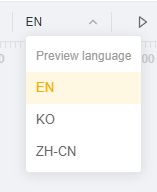
* Click the drop-down button in "Default language",bring up the preview language tab.
* Select the language you want to preview in the default language that has been set (the default language can be set in "Global settings")
## 4.Play the scene/Return to initial state
* Click the 'Play the Scene' button to play the current scene on the canvas and preview the effect.
* Click the 'Return to Initial State' button to return to the preview in a static state.
Note: The \[Play the Scene] feature supports previewing currently **displayed layers on the canvas**, as well as **animations, particles, sequence frames, and sound effects set to auto-play**. It cannot preview event settings (to preview event settings, click on the [preview](../project-operation-area/preview "mention") button in the top right corner to jump to the preview interface for trial preview).
## 5.Quick layout
“Quick Layout” button only appears in Template content creation.The specific operation can be viewed through [gameplay-template](../top-asset-library/gameplay-template "mention")
## 6.Preview Size Switch
### **1)Recommended preview size adjustment**
* Click the "Canvas preview size" percentage value of the Canvas to bring up the preview size tab.
* Support 4 preview modes: Fit the screen / 200% / 100% / 50%.
* Click on the appropriate percentage to resize.
### **2)Fine adjustment of the current preview size**
* At the bottom right of the Canvas, there are the " - /+" buttons. Click to fine-tune the size of the current preview
* 1% fine-tuning for each click
## 7.Help Center
* Press the button to jump to the official help center.
* The“Playable Tools-Content editor”in the Help center can help you solve problems encountered during use.


 button to jump to the official help center.
* The“Playable Tools-Content editor”in the Help center can help you solve problems encountered during use.
button to jump to the official help center.
* The“Playable Tools-Content editor”in the Help center can help you solve problems encountered during use.